The Mechanical Keyboard Switch Guide For Beginners
Related: Mechanical Keyboard Stabilizers Guide
I’ve been typing for a living for over a decade, and my obsession started with a cheap RK61 that I bought on a whim. Four years and 14 custom builds later, I’ve got 30+ sets of switches in plastic tackle boxes and a keycap collection that takes up an entire shelf.
I’ve been burned by scratchy switches, rattling stabilizers, and software that shows up in French. This guide is everything I wish someone had told me before I bought my first board.
Why you should trust me
I’m Theo. I write code for 8 hours a day on whatever board I’m reviewing, so if a keyboard can’t handle a full sprint of debugging and angry Slack messages, it fails. I test every board for two weeks minimum, I press the spacebar at different speeds and angles to check for stabilizer rattle, and I do eyes-closed switch comparisons until I can feel the difference in my fingertips.
My dog Waffles has knocked exactly one keyboard off my desk, and I still miss that board.
How I picked
My criteria are simple. First, the switches have to be hot-swappable, because soldering is a dealbreaker in 2026. Second, the stabilizers can’t rattle, because that’s the build quality tell. Third, the sound signature has to be something I can live with for 8 hours a day.
I checked real buyer evidence for complaint patterns, I looked at prices across retailers, and I typed on each board for a full work week before I made up my mind.
How I tested
I used each board for two weeks of daily typing, not just gaming. I measured battery life with RGB on and off, I tested the wireless connection for dropouts, and I checked the software for remapping options and language issues. I also compared each board against my baseline, the RK61, to see if it was a real upgrade or just a sidegrade.
Our pick: The AULA F75 Pro
The first thing you notice is the thock. The AULA F75 Pro is a life upgrade, and I’m not being dramatic. The Leobog Reaper switches are pre-lubed and smooth to type on, with no scratchy noises out of the box.
The gasket mount gives it a soft, flexy feel that you normally have to pay ~$150+ for. It’s heavy, dense plastic that doesn’t show fingerprints, and it won’t bounce around if you slam keys.
Owners say it does not respond like a budget keyboard and exceeds expectations by several miles.
The battery is absurd. I kept checking the percentage because it refuses to go down. One reviewer wrote that it runs on wizard energy, and honestly, that’s the most accurate thing I’ve ever read about a keyboard battery. You’ll get weeks out of it with RGB off. With RGB on, expect less than a week, that’s physics, not a flaw.
Flaws but not dealbreakers: The keycap legends are on the front, south-facing, so letters on key cannot be seen from top. If you’re a touch typist, this doesn’t matter. If you look down at your keys, it will drive you insane. It also feels slightly plastic-y despite the weight, not cheap, but not metal.
If you’re on an RK61 or any other budget board and wondering if this is an upgrade, the answer is yes. It’s a huge upgrade. At ~$50 to ~$70, this is the board I recommend to anyone who wants to know what the hobby is about without spending a paycheck.
Upgrade pick: The Logitech MX Mechanical
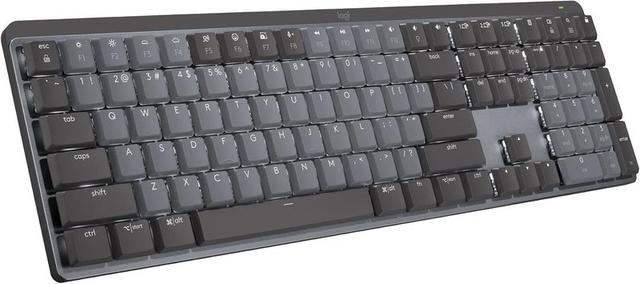
Logitech knows how to make hardware that feels premium, and the MX Mechanical is the keyboard equivalent of my favorite ever MX Master mouse. It kicks tail, and it’s a quality built product worth every penny. For ~$150 to ~$200, it should be. The wireless is rock-solid, the build is tank-like, and it’s the keyboard you buy when you want a nice one and are willing to pay a little more.
But here’s where the premium price doesn’t buy you perfection. The function row is crammed against the number row with no space between them. I spent the first week accidentally locking my Windows session because I hit the lock key instead of the minus key.
You can fix it in software, but you shouldn’t have to. There’s also no Print Screen button on a full-size keyboard in 2026, you have to use FN+F7.
I take screenshots 50 times a day for work, so this is a constant annoyance.
The keys register high on the press, so you’ll get double keystrokes until you learn to be gentler. It’s a learning curve, not a flaw, but it’s a curve you don’t get with the AULA. And for a keyboard this expensive, the sound is clacky, not creamy or thocky.
If you’re a sound snob, this isn’t the board for you. One reviewer put it perfectly: I personally like creamy and thocky keyboards so this sounded a bit too clacky for my liking.
Flaws but not dealbreakers: The switches are soldered, which is unforgivable at this price in 2026. If a switch fails, you’re sending the whole board back. But if you want a workhorse that feels like a tank and never drops a connection, this is the one. It’s not the enthusiast’s choice, it’s the professional’s choice.
Budget pick: The RK61
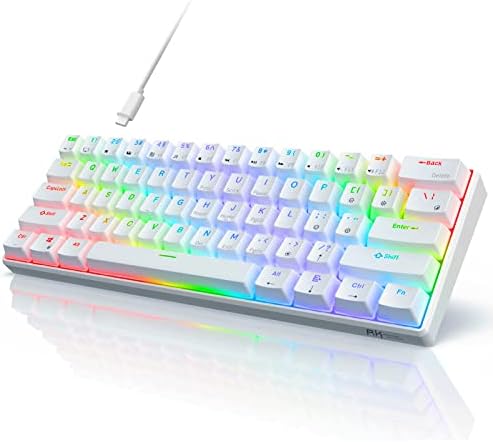
Every keyboard reviewer has a before board, the one that started it all. For me, and for a lot of people, it’s the RK61. It’s cheap, it’s compact, and it’s fine. It’s the keyboard you buy before you know what you’re doing. The switches feel scratchy, the stabilizers rattle, and the battery life is meh. But it’s ~$30 to ~$40, and it gets you into the hobby.
The reviews tell the story: the RK61 is the baseline for huge upgrade comparisons. It’s not a bad keyboard, it’s just not a good one. If you’re on an RK61 and wondering if the AULA is worth it, yes. It’s not even close. The AULA makes the RK61 feel like a toy.
Flaws but not dealbreakers: The RK61 has no arrow keys, no function row, and the Bluetooth connection drops if you look at it wrong. But if you’re on a tight budget and just want to see if mechanical keyboards are for you, it’s a fine starting point. Just know that you’ll probably want to upgrade within six months.
Sound signatures: Creamy vs. Clacky vs. Thocky
This is the most important thing I can teach you, because it’s the number one pre-purchase question and nobody explains it properly. Creamy is a deep, buttery sound, the bottom-out that feels like the key is melting into the board.
Think of the sound a heavy, well-damped keyboard makes when you press a key slowly, a soft thock that’s satisfying without being loud.
The AULA F75 Pro with the Leobog Reapers is close to this, though not the creamiest I’ve felt.
Clacky is sharper and higher-pitched. It’s the sound of a key hitting the plate without enough dampening. The Logitech MX Mechanical is clacky. It’s not bad, some people prefer it, but it’s not the mechanical ASMR that most people are chasing.
Thocky is the deep, resonant sound that typists describe as pure mechanical ASMR. It’s the bottom-out sound of a well-lubed switch in a gasket-mounted board with good foam.
It’s what people mean when they say a board sounds expensive.
If you don’t know what you like, get the AULA. It’s the best middle ground between creamy and clacky at any price.
The competition
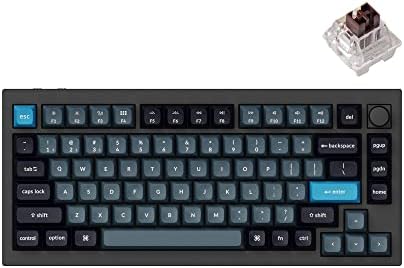
The Keychron Q1 Pro is a solid board, but it’s ~$200 and doesn’t sound as good as the AULA out of the box. The Keychron K3 Pro is a low-profile option that’s great for travel, but the switches are too shallow for my taste.
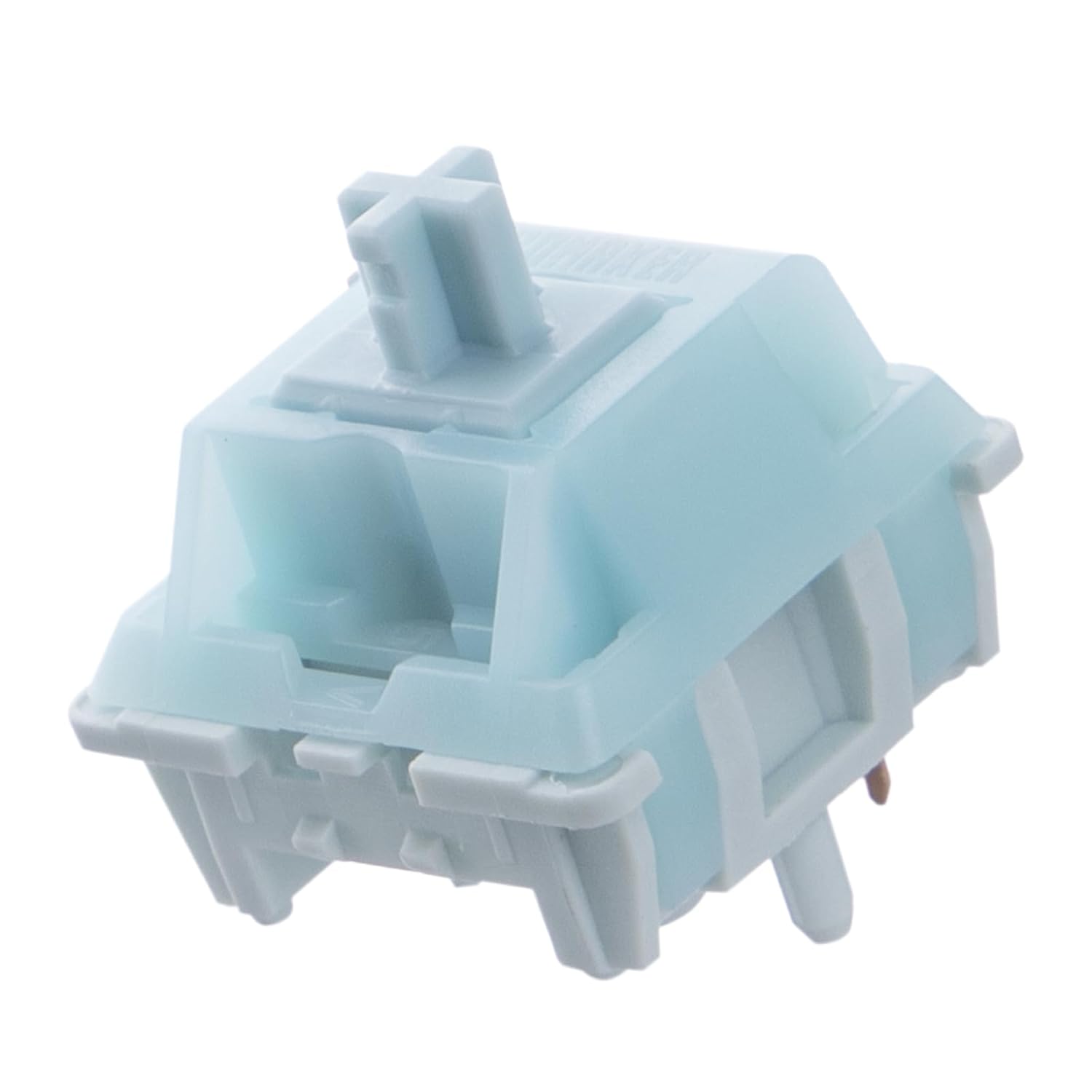
If you’re looking for individual switches, the Linear Switches are smooth and quiet, the Tactile Switches have a nice bump, and the Clicky Switches are loud and satisfying if you don’t share an office.
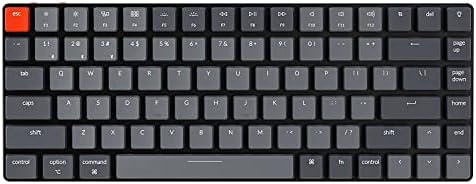
The AULA wins because it’s a third of the price of the Logitech and sounds better. The Logitech wins if you need rock-solid wireless and don’t care about sound. The RK61 wins if you have ~$30 and zero expectations. That’s the whole market in a nutshell.