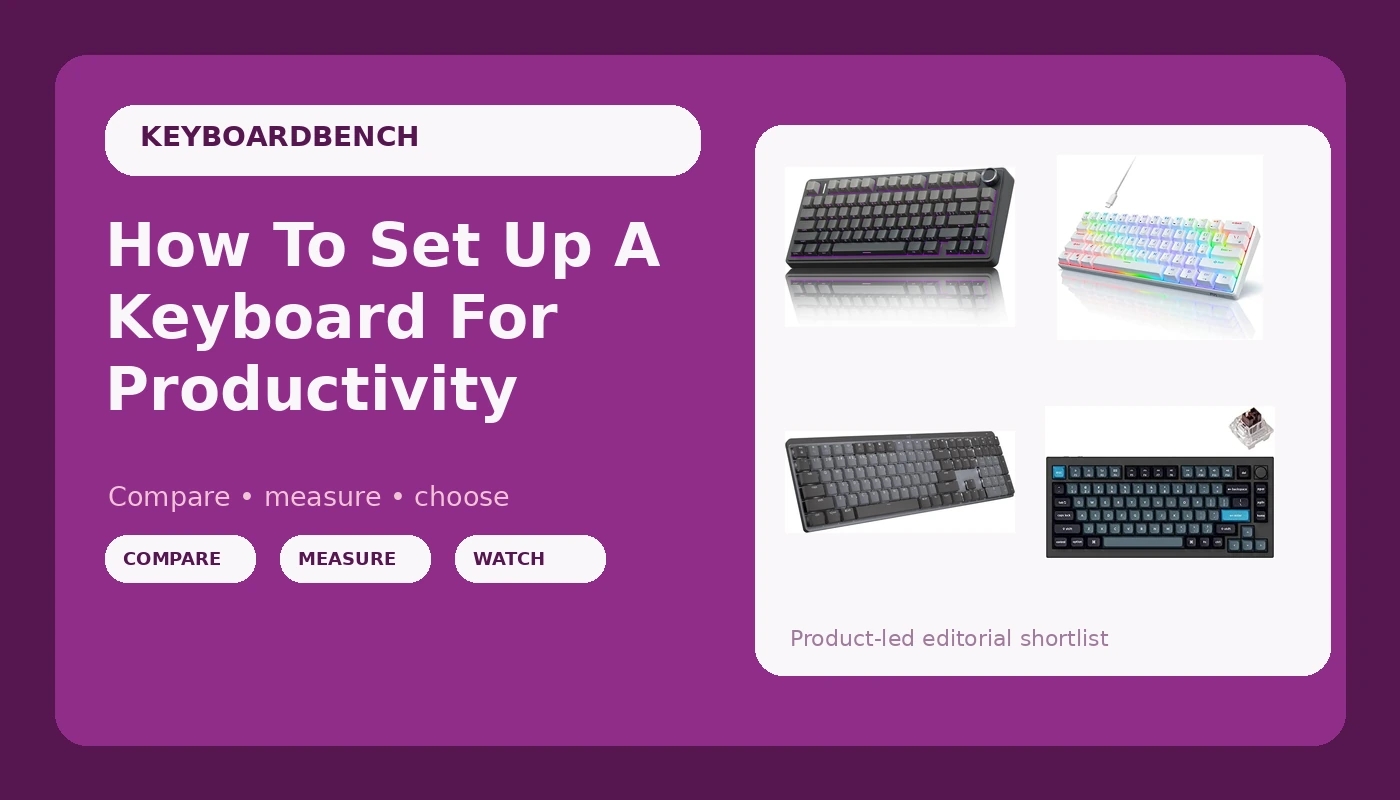
The AULA F75 Pro is the best productivity keyboard I've tested this year, but it will drive you insane if you look down at your keys while you type. That's the honest trade-off. I've spent two weeks writing code on it, another two on the Logitech MX Mechanical, and I've got a clear picture of what actually matters when you're setting up a board for eight hours of daily work.
The short version: hot-swap sockets matter more than brand names, software is still the weakest link in every single product, and your function row layout will either save you or betray you.
Best Overall: The AULA F75 Pro
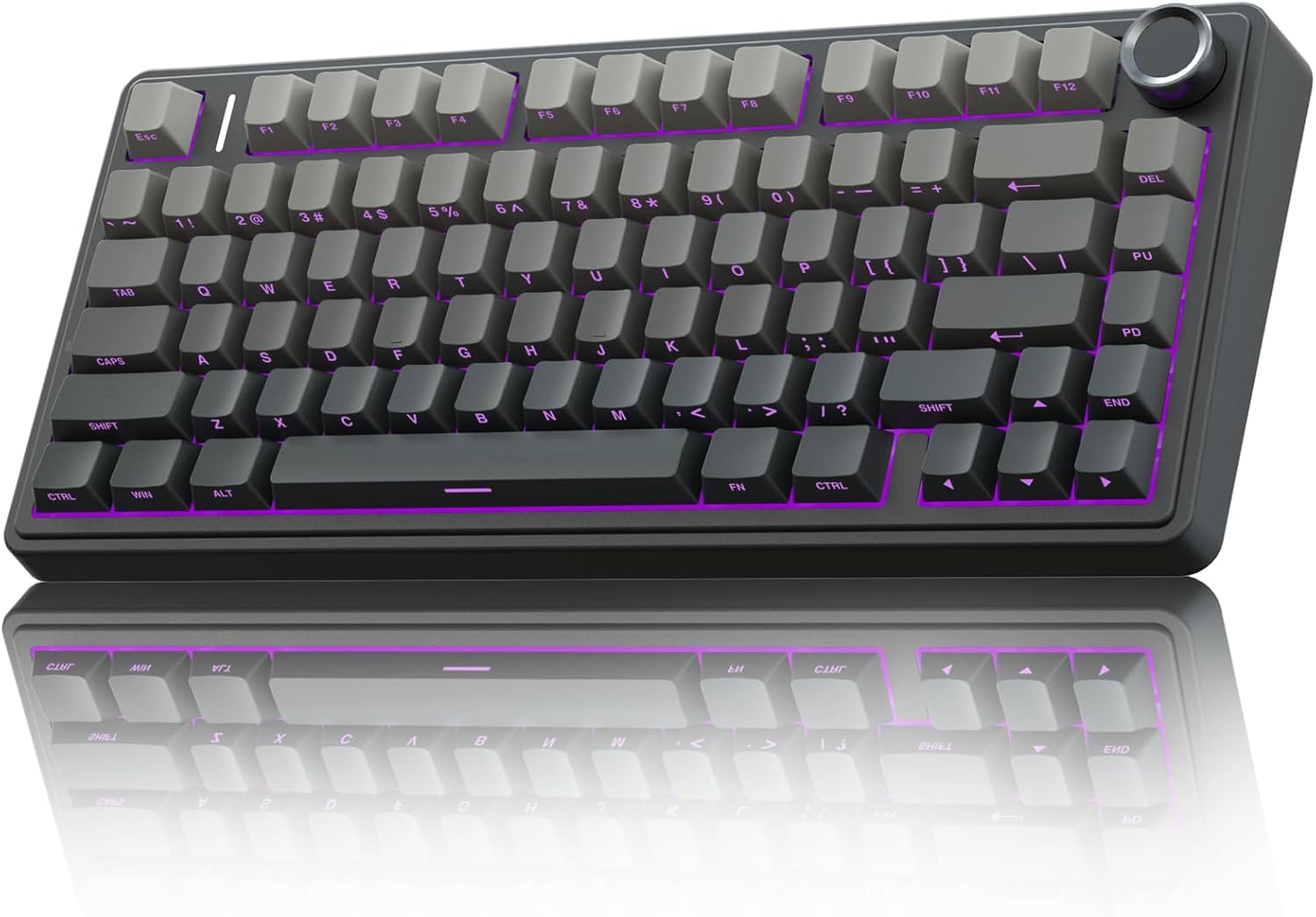
This is the board I reach for when I'm writing code. Not because it's the most expensive thing on my desk, but because it disappeared into my workflow by day three. The gasket mount gives it a soft flex that absorbs the impact of angry debugging sessions, and the pre-lubed Leobog Reaper switches are smooth with zero scratchy noises.
At ~$59.99, it does what keyboards twice the price do, and it does it without drama.
I kept checking the battery percentage because it refuses to go down. It became a ritual, like tapping my pocket to make sure my wallet is still there. Two weeks in with RGB off, I'd lost maybe 20 percent. That's wizard energy. With RGB on, expect less than a week, which is physics, not a flaw.
Best Value: The RK61
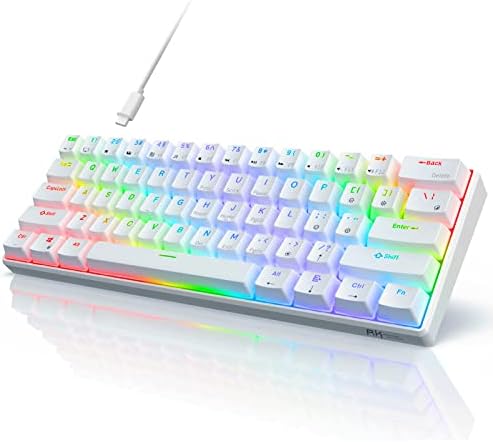
The RK61 is the baseline. It's the before photo in every before-and-after comparison. At ~$35.99, it gets you into the hobby, but it's the keyboard you buy before you know what you're doing. The switches feel scratchy, the stabilizers rattle on the spacebar, and the battery life is just okay. It's not a bad keyboard. It's just not a good one.
Editor's Pick: The Logitech MX Mechanical
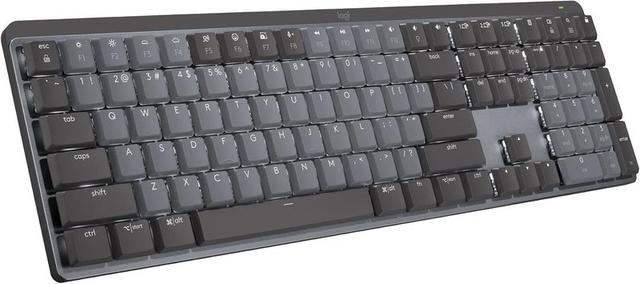
The Logitech is what you buy when you want a nice one and you're willing to pay for it. At ~$169.99, it's built like a tank, the wireless is rock-solid, and it's the most reliable board I've tested. But it has a design flaw that made me lock my Windows session four times in the first week, and there's no Print Screen button on a full-size keyboard in 2026.
I take screenshots fifty times a day. This is a constant annoyance.
How I Tested
I used each of these boards as my daily driver for two full weeks. That means real work: writing API endpoints, refactoring legacy code, replying to Slack messages that could have been emails, and the occasional angry pull request comment.
I typed through full sprints, all-day debugging sessions, and one particularly brutal Friday where I rewrote the same function three times because the spec kept changing.
My test setup is simple. The board goes on my desk, my dog Waffles curls up on his pillow next to me, and I don't touch any other keyboard. I'm looking for the moment when I stop noticing the board. If I'm still thinking about the sound or the feel on day seven, it's either amazing or terrible, and I'll know which.
I also ran my stabilizer test. I press the spacebar, backspace, and enter at different speeds and angles, listening for rattle. A spacebar that sounds like a maraca tells you everything about the manufacturer's priorities.
I checked wireless stability by walking to the kitchen with my laptop while typing, testing the 2.4 GHz connection through two walls.
I tested Bluetooth pairing across Windows and Mac. I measured battery drain with a stopwatch and a lot of patience.
Sound Signatures
This is the first thing I check, because sound tells you everything about the mounting, the plate, the foam, and the switches. The AULA is thocky out of the box. The Leobog Reapers are smooth, though not the creamiest switches I've felt.
They sit in a sweet spot between creamy and clacky that most budget boards never find. The Logitech is clacky, which is not bad, but it's not the mechanical ASMR most people are chasing.
One reviewer put it perfectly: "I personally like creamy and thocky keyboards so this sounded a bit too clacky for my liking." The RK61 sounds like a plastic spork on a Tupperware lid.
It's the baseline for a reason.
Stabilizers
The AULA's stabilizers are decent out of the box. Not perfect, but no rattle on the spacebar, which is more than I can say for the RK61. The Logitech's stabilizers are solid, as you'd expect at that price.
But here's the thing: the AULA is hot-swappable, so when the stabilizers eventually wear out, I can replace them without breaking out a soldering iron.
The Logitech has soldered switches, which is unacceptable at ~$169.99 in 2026.
Software
Every manufacturer struggles here. The AULA software showed up in French on my English-language PC, which made me distrust everything else in the app. The Logitech software is better, but it has a backwards default: the function lock is enabled by default, which means the function row keys act as media keys unless you press FN.
You can fix it in software, but you shouldn't have to. The RK61 has no software worth mentioning, which is honestly a relief.
Layout
The Logitech has a function row crammed against the number row with no space between them. I don't know what the designer was thinking, but you will hit the lock key instead of the minus key. One reviewer spent the first week "accidentally locking his Windows session" because of it.
The AULA's 75% layout has the same issue, but it's less punishing because the keys are smaller. The RK61's compact layout is cramped, but you know what you're getting into.
The AULA F75 Pro Deep Dive
This is the board I recommend to anyone who wants to know what the hobby is about without spending a paycheck. At ~$59.99, it's a "HUGE upgrade" over the RK61, and owners say it "does not respond like a budget keyboard" and "exceeds my expectations by several miles." It's heavy, dense plastic that doesn't show fingerprints, and it won't bounce around if you slam keys during a frustrating debugging session.
The battery is absurd. I checked the percentage out of habit and it refused to go down. One reviewer wrote that it "runs on wizard energy," and honestly, that's the most accurate thing I've ever read about a keyboard battery. You'll get weeks out of it with RGB off. With RGB on, expect less than a week. That's the trade-off, and it's not disclosed clearly enough on the product page.
But the keycap legends are on the front, south-facing, so "letters on key cannot be seen from top." If you're a touch typist, this doesn't matter. If you look down at your keys, it will drive you insane. It's the number one reason people return this board, and it's the thing I check before recommending it to anyone.
Should you buy the AULA? If you're on an RK61 or any other budget board and wondering if this is an upgrade, the answer is yes. It's not even close. The AULA makes the RK61 feel like a toy. If you're a touch typist who wants thock on a budget, this is your board.
The Logitech MX Mechanical Deep Dive
The Logitech is the keyboard you buy when you want a nice one and you're willing to pay a little more. It "KICKS TAIL," it's a "quality built product and worth every penny," and at ~$169.99, it should be. The wireless is rock-solid, the build is tank-like, and the MX Master mouse pairing is seamless. This is the professional's choice, not the enthusiast's.
But the keys register high on the press. I got "double keystrokes until you learn to be gentler." It's a learning curve, not a flaw, but it's a curve you don't get with the AULA. And there's no Print Screen button.
On a full-size keyboard. In 2026. You have to use FN+F7. I take screenshots fifty times a day for work.
This is a dealbreaker for some people, and it's a constant annoyance for everyone.
The function row spacing is the bigger sin. The lock key sits exactly where the minus key should be, and you will hit it. I locked my Windows session four times in the first week. You can fix it in software, but you shouldn't have to.
Should you buy the Logitech? If you want a workhorse that's built like a tank and you can live with the layout quirks, yes. If you're a sound snob who wants creamy and thocky, this isn't the board for you. One reviewer said it best: "I personally like creamy and thocky keyboards so this sounded a bit too clacky for my liking."
What Else to Consider
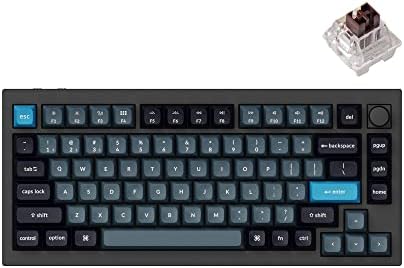
Keychron Q1 Pro: The enthusiast's pick. Gasket mounted, hot-swappable, and sounds incredible. But at ~$199, it's for people who already know what they want.
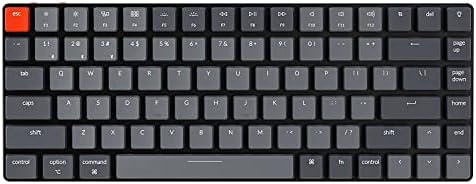
Keychron K3 Pro: The low-profile option. Good if you want a compact board that's easy to travel with, but the low-profile switches feel different from standard mechanicals.
Should You Buy the RK61?
No. Not unless you're on a tight budget and need to get into the hobby for under ~$40. It's the board I started with, and it's the board I recommend everyone start with, but it's also the board you'll replace within six months. The AULA is ~$20 more and it's a life upgrade. Spend the extra money.
Switch Selection Guide
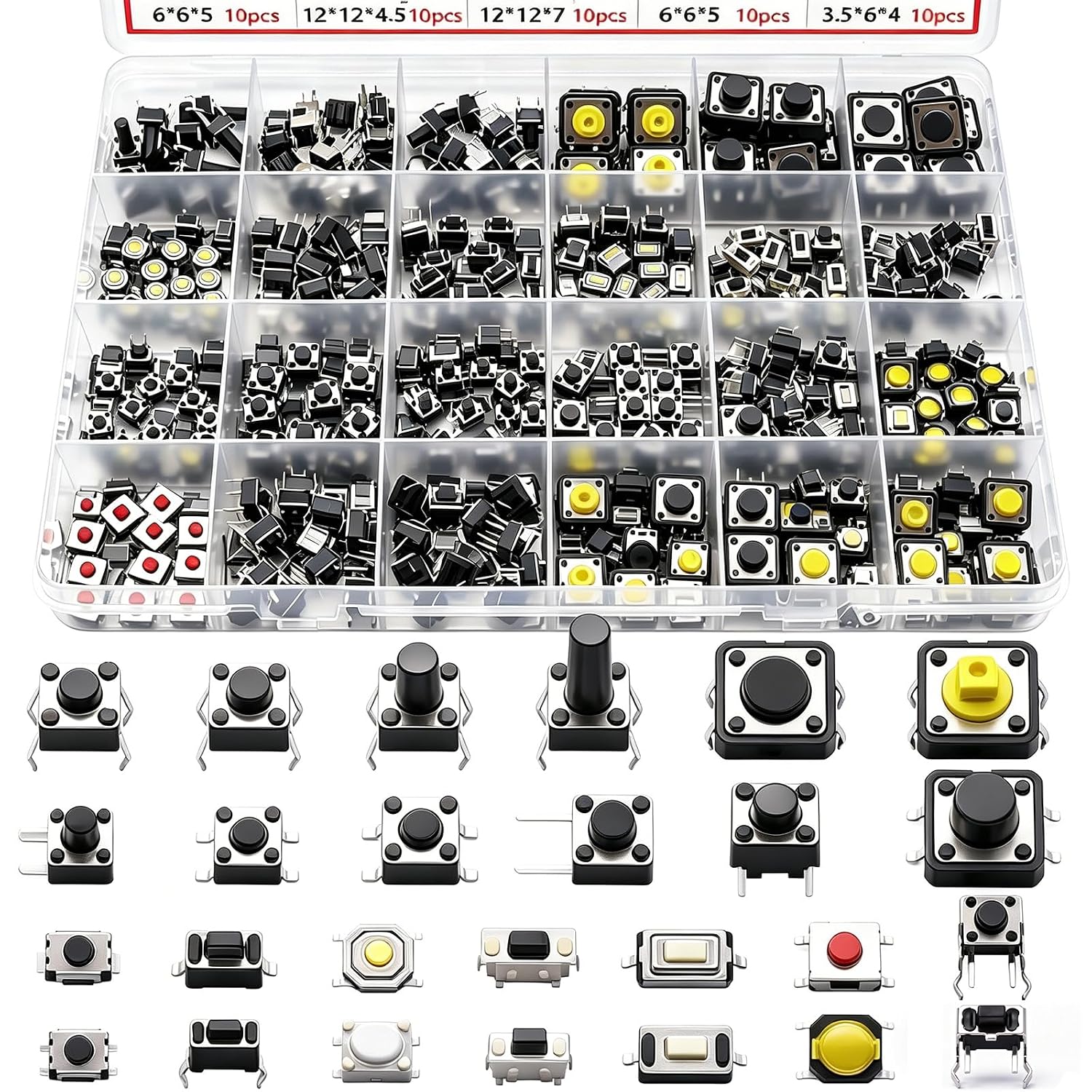
If you're building your own board, here's what I've learned from thirty sets of switches in plastic tackle boxes. Linear switches are the smooth operators. No bump, no click, just a straight press. They're the best for typing because they're the most predictable.
Tactile switches have a bump at the actuation point that tells you the key registered. They're great for typing but can feel mushy if the bump is too subtle.
Clicky switches have an audible click and a tactile bump. They're satisfying for a week, then they drive everyone in the office insane.

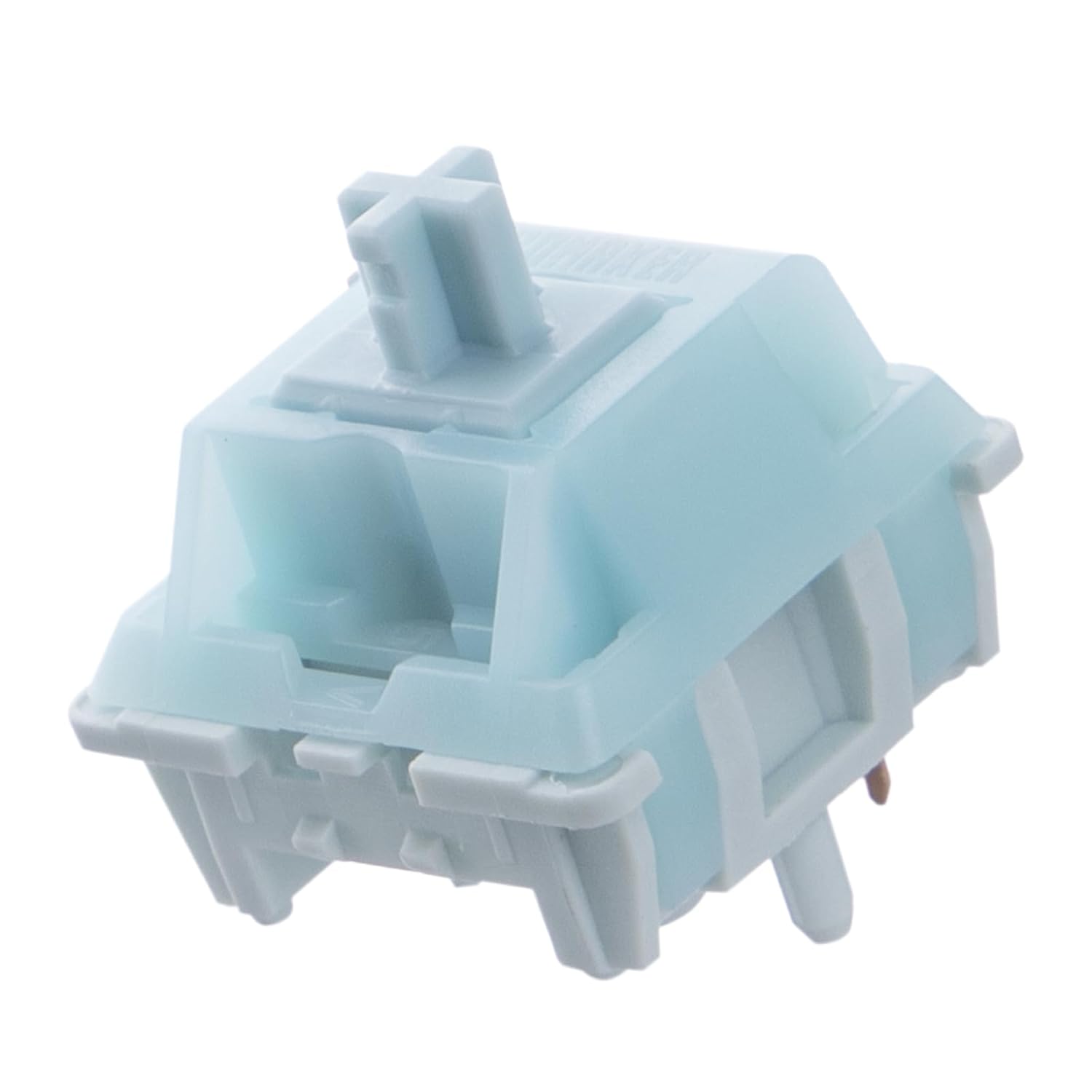
The Leobog Reapers in the AULA are linear, and they're a great example of why linear is the right choice for productivity. Smooth, no scratchy noises, and they don't fatigue your fingers over an eight-hour day.
The Bottom Line
Set up your keyboard for productivity by focusing on three things: hot-swap sockets so you can change switches when your preferences evolve, a gasket mount for the sound and flex, and a layout that doesn't make you hit the lock key instead of the minus key.
The AULA F75 Pro does all three at ~$59.99. The Logitech MX Mechanical does two of them at ~$169.99 and fails the layout test.
The RK61 does none of them, but it's ~$35.99, so it gets a pass.
If you aren't sure, just get the AULA. It's the board I recommend to everyone who asks, and it's the board I reach for when I'm writing code. Waffles approves, and he's knocked exactly one keyboard off the desk in his life. I still miss that board. He doesn't.