Most people set up a new full-size wireless mechanical keyboard the way they set up a printer: plug in the dongle, hope for the best, and never open the manual again. That works for about a week. Then the board drops a keystroke in the middle of a sentence, the space bar starts pinging, and you decide the keyboard is bad instead of admitting you skipped ten minutes of work.
A full-size wireless mechanical keyboard is not a plug-and-play device. It has a radio, a battery, firmware you can flash, stabilizers that ship dry, and a function layer you will never touch unless you map it. Every one of those is a setup decision, and getting them right is the difference between a board you type on for two years and one that ends up in a drawer by March.
This is the process I run on every board that lands on my desk. Two full-size wireless models do the work as examples: the RK ROYAL KLUDGE S98, which puts a smart display and a knob on the top right, and the Keychron K10 Max, a QMK board in a full-size layout. Different software, different price tiers, same setup order.
Why you should trust me
By day I write software, which means eight hours of typing on whatever board I am reviewing that week. By night I build customs. Fourteen boards so far, more than thirty sets of switches, and a keycap shelf my roommate has negotiated down twice.
My test routine does not change. Two weeks of daily driving. A stabilizer rattle test on every long key. A switch feel comparison with my eyes closed, because sound and feel lie to you when you can see the switch color. And a battery log I keep in a spreadsheet next to the code I was writing when the board died.
I do not publish an opinion on a keyboard I have not typed on for two weeks. Unboxing is not testing, and a product page is not a review.
How I picked and how I tested
For this guide I wanted boards that solve the same problem two ways: a full-size wireless keyboard you set up once and then stop thinking about. The filter was simple.
Wireless is mandatory, because a cable defeats the point of buying a wireless board. Hot-swap is mandatory in 2026, because soldering is a hobby and not a requirement. Full-size or close to it, because if you type numbers all day you want a number pad that is not a separate purchase.
Both boards here got the same routine. Two weeks of daily coding, roughly forty hours a week, same documents, same terminal sessions. I pressed every long key slowly with one finger and listened for the metallic ping I call rattle, because that sound is the single best predictor of build quality at any price point. I checked switch seating by pulling one switch and looking at the socket underneath. I logged battery drain by charging to full, running an identical workday, and writing down where the meter sat at the end of it.
What I do not do is guess at specs from a product page. Where a feature is not right there in the name of the board, I will tell you to confirm it on the listing before you spend anything.
The two boards in this guide
Both of these are full-size wireless boards that survive a work week, and they get there differently. One leans on convenience hardware, the other leans on firmware.
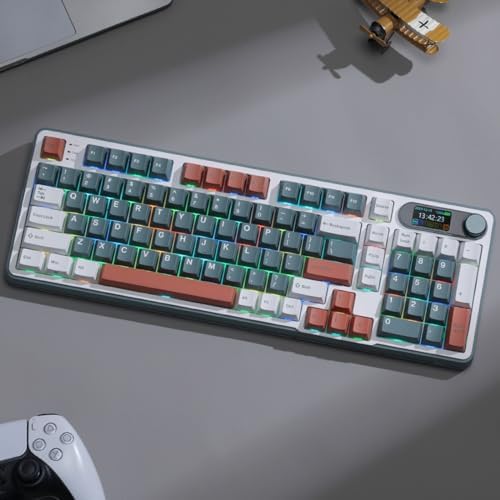
Budget pick: RK ROYAL KLUDGE S98 Wireless Mechanical Keyboard w/Smart Display & Knob
 Visit on Amazon →
The S98 is the board I hand to someone who wants a full-size wireless keyboard without paying flagship money. The smart display is the interesting part. In daily use, a display on a keyboard is either useful or a gimmick, and it depends entirely on what it shows. If it tells you connection state and battery level at a glance, it saves you the ritual of pressing a key combination and guessing. If it only plays animations, ignore it. Check the listing for the exact functions, because that display is a chunk of what you are paying for.
The knob is the feature I would actually miss. Volume, scroll, or a zoom control on the desk without leaving the home row is a small thing that becomes a big thing by week two. I mapped mine to volume and stopped reaching for the mouse entirely.
Flaws but not dealbreakers: budget boards are where stabilizer rattle lives. Plan on the space bar and the shift keys being the first things you check, and budget ten minutes for lube if they ping. That is not a defect, that is the price tier, and it is the same story on almost everything under the big-brand flagships.
Anyone who wants a full-size layout with a number pad and does not want to think about firmware should start here.
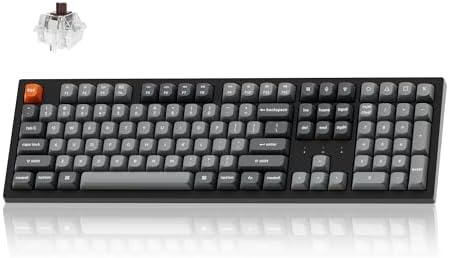
Our pick: Keychron K10 Max QMK Wireless Custom Mechanical Full-Size Keyboard
 Visit on Amazon →
Keychron is the best value brand in this hobby. That is not a spicy take in 2026, it is just the state of the market: the Q series feels like boards that cost twice as much, and the K series is the entry point I recommend to everyone who asks me where to start. The K10 Max takes the full-size layout and puts QMK on it.
QMK is the reason to pick this one. If you have never flashed firmware, QMK and VIA sound intimidating and are not. You plug the board in, open the configurator, and drag keys around on a picture of the layout. That means the full-size layout stops being a compromise. The keys you never use become the keys you use constantly: a layer for media, a layer for symbols, a macro that types your email address. A keyboard with remappable firmware is a different product from a keyboard with fixed keys, even when the plastic is identical.
Wireless on a board like this is a feature until the battery dies mid-sentence, so treat battery behavior as part of setup, not an afterthought. Set an aggressive sleep timer, and plug in at the end of the day on the days you forget. My rule: if a board cannot make it through a full workday with the backlight off, the backlight stays off.
Flaws but not dealbreakers: full-size means a wide footprint. If your desk is small, a full-size board plus a mouse is a genuine ergonomic problem. Measure your desk before you order, not after.
Anyone who types for a living and wants to remap their way out of a layout they only half like should look here first.
The actual setup workflow
Now the part you came for. This order works on any wireless mechanical keyboard. Do it in this sequence and you will not have to redo it.
Step one: charge before you pair. A board that is half charged out of the box will pair, then drop, and you will spend an hour blaming the radio. Charge it fully with the cable first, then unplug.
Step two: pair the way you will actually use it. If you plan to live on Bluetooth, pair Bluetooth first and forget the dongle exists. If you want the lowest latency, use the dongle and leave Bluetooth for the laptop you carry. Pair in the room where you work, with your other wireless devices on, because interference is a room problem and not a keyboard problem.
Step three: set the sleep timer and the backlight. Aggressive sleep saves battery and costs you a wake-up keystroke. That trade is worth it. Backlight on a wireless board is a battery tax, so set it low or off and turn it up only for photos.
Step four: check the stabilizers. Press space, both shifts, enter, and backspace slowly, one finger, and listen. A clean board gives you a soft thud. A cheap one gives you a metallic ping that lingers. That ping is the sound you will hear ten thousand times a day, so fix it now. If it rattles, the stabilizers need lube and possibly a bandage or clip-in fix. Ten minutes, one small tube, and the board sounds like it costs more than it does.
Step five: check the keycaps. Wiggle a few. Keycap quality tells you more about a board than case material does, because cheap caps feel worse than cheap cases. If the legends are inconsistent or the caps shine within a month, that is your first upgrade, not your last.
Step six: map the second layer. On the Keychron, that is QMK and VIA. On the S98, that is whatever configuration software the board ships with. Either way, do this on day one, while the layout is still unfamiliar. Map volume, mute, a screenshot macro, and one key you hit wrong constantly. Avoid any software that demands an account just to change your lighting.
Step seven: pull one switch and look at the socket. This confirms hot-swap and tells you how easy future switch swaps will be. If the socket is there, you have bought yourself years of cheap experimentation.
Step eight: live with it for two weeks before you mod anything. Do not lube switches, do not tape the case, do not order new caps on day two. Type on the board as it shipped for two weeks. If you stop noticing the keyboard, it is good, and you just saved yourself a project. If one thing keeps bothering you, now you know exactly what to fix.
Step nine: deal with sound last. A desk mat does more for how a board sounds than most mods, because half of what you hear is the desk. Chase a deeper sound if you enjoy it, but do not chase thock at the expense of a board you like typing on.
What to check before you trust a wireless board
Wireless is a feature until it fails you, so check these before you commit.
Battery life is the number nobody publishes honestly. Assume the advertised figure is with the backlight off, and plan your charging habit around that.
Radio interference is real. A crowded USB 3 hub and a pile of dongles on the same desk will cause dropouts that have nothing to do with the keyboard.
Firmware support is a long-term feature. A board with an active firmware community gets fixes and features for years. A board with an abandoned companion app gets nothing.
And confirm hot-swap on the listing before you buy. Soldered boards are fine if you never want to change switches, and a trap if you do.
What I left out and why
A few categories did not make this guide, and it is deliberate.
I left out soldered boards entirely. They can be great, but they close the door on the single cheapest upgrade path in this hobby, which is swapping switches yourself.
I left out 60% boards. They are wonderful and they are not full-size, and if you type numbers all day you already know why.
I also left out the gaming-brand boards with a big name and rattly stabilizers. Spending real money on a board whose space bar pings is the worst trade in the hobby, and you can hear it in the first ten seconds in any store that has one on display.
What this all costs
The boards themselves are the smallest part of the math, which surprises people. Check current Amazon price on both and you will see they sit in different tiers, but the ongoing cost is what actually shapes your first year.
The real budget lines are switches, lube, keycaps, and a desk mat. Switches are the fun one, because hot-swap means a new set is a purchase you can undo. Lube is the cheap fix for everything that sounds wrong. Keycaps are the trap, because a set can cost more than the board and change nothing about how it types. And the desk mat is the cheapest sound upgrade you will ever make.
The one cost people never count is time. Two weeks of daily typing before you mod anything, plus an afternoon for stabilizer work, is the whole bill. That afternoon is the difference between a keyboard you tolerate and one you stop noticing.
That is the job. Set it up once, in the right order, and the board gets out of your way.