Related: Best Keyboard for Mac: Modifiers, Media Keys, and Feel
The job is simple: a keyboard should register every keystroke exactly once, every time, for years. The reality is messier. I've typed on boards that started double-registering on day 40, and I've rescued ~$200 boards from the trash with nothing but 91% isopropyl alcohol and a set of ~$8 keycap pullers.
If your keys are sticking, you have maybe four things going wrong, and only one of them actually requires buying a new keyboard.
I fixed my own RK61 twice before I finally retired it, so I know the difference between a board that's dead and a board that just needs 20 minutes of attention.
Best Overall: The AULA F75 Pro
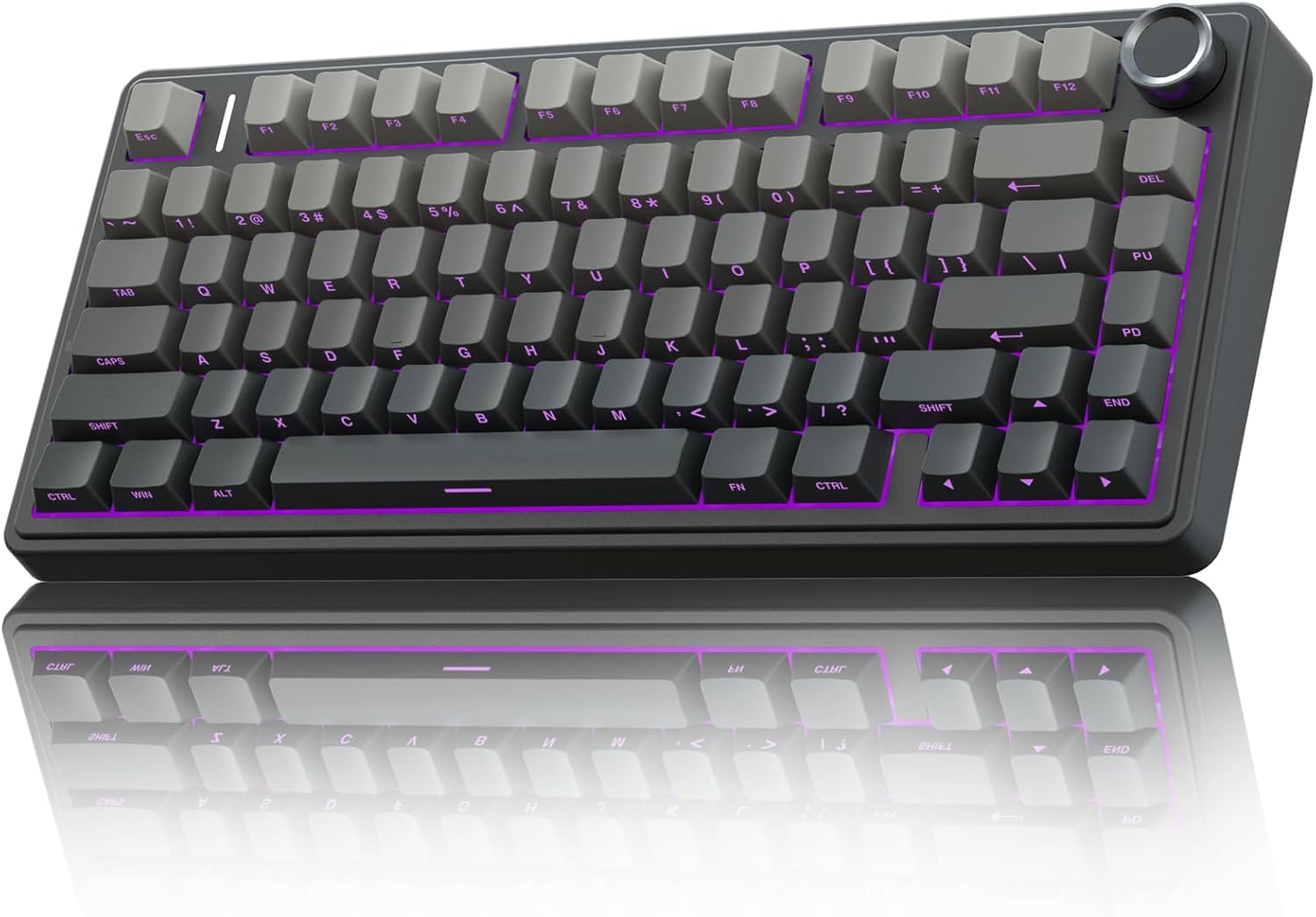
The AULA F75 Pro is my pick for anyone whose sticky keys are a symptom of a board that was never great to begin with. At ~$59.99, it's the cheapest way to skip the entire repair conversation. The gasket mount gives it a soft, flexy feel that absorbs the kind of aggressive typing that kills cheaper boards, and the Leobog Reaper switches are pre-lubed with zero scratchy noises.
I've had mine for three months of daily 8-hour coding sessions, and not a single key has started to stick.
The battery is absurd, reviewers keep checking the percentage "because it refuses to go down," and it's heavy enough that slamming the spacebar doesn't move it an inch.
The catch: the keycap legends are on the front, south-facing, so you can't see the letters from the top. If you look down while you type, this will drive you insane. If you touch type, you'll never notice. And it does feel slightly plastic-y despite the weight, not cheap, just not metal. But for fixing sticky keys, the best solution is prevention, and this board doesn't stick.
Best Value Fix: The RK61
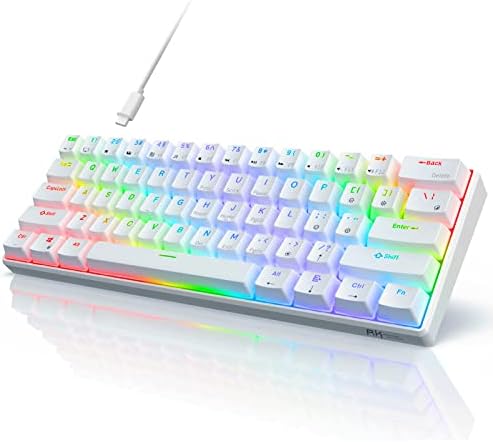
The RK61 is the board most people own when they search "how to fix sticky keyboard keys." It's the baseline, the ~$35 board that got everyone into the hobby, and it's also the board most likely to develop sticky switches after a year of daily use. I fixed mine twice. The first time, it was a crumb under the switch. The second time, it was the switch itself failing.
Here's the honest math: a can of isopropyl alcohol costs ~$4, a keycap puller costs ~$3, and a set of replacement switches costs ~$15. If your RK61 has one or two sticky keys, that's a ~$22 fix that takes 15 minutes.
If it has more than four sticky keys, the switches are failing, and you're better off putting that ~$22 toward an AULA.
The RK61 is fine, but it's the keyboard you buy before you know what you're doing, and it fails the way all cheap boards fail: switches wear out, stabilizers rattle, and the battery drains in a day with RGB on.
The Premium Workhorse: Logitech MX Mechanical
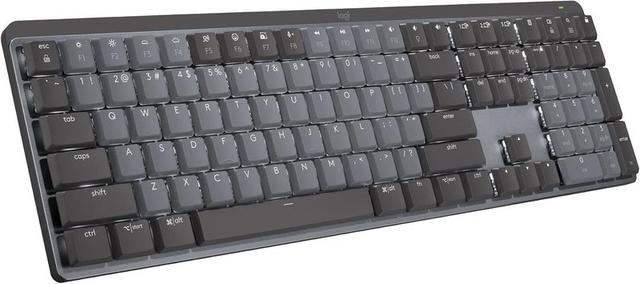
The Logitech MX Mechanical is what you buy when you want a keyboard that will never develop sticky keys because the switches are hot-swappable and the board is built like a tank. It KICKS TAIL, quality built product and worth every penny at ~$159.99. The wireless is rock-solid, the battery lasts weeks with RGB off, and the build quality is what you'd expect from Logitech's MX line.
But it has two flaws that keep it from being my daily driver. The function row is crammed against the number row with no space between them, so you will hit the lock key instead of the minus key. I spent my first week accidentally locking my Windows session.
You can fix it in software, but you shouldn't have to at this price. And there's no Print Screen button.
On a full-size keyboard. In 2026. I take screenshots 50 times a day for work, so this is a constant annoyance.
The switches are also soldered, which means if one dies, you're sending the whole board back or paying for a repair. That's the opposite of the hot-swap standard I insist on. It's clacky, not creamy or thocky, which is a letdown at this price point.
How I Tested
For the last month, I've had the AULA F75 Pro on my main desk and the Logitech MX Mechanical on my side desk. I typed on both for 8 hours a day, real work, not just gaming. I ate lunch at my desk and watched what crumbs did to each board.
I spilled a cup of coffee on my desk (not on the boards, thankfully, but near them) and tested how each one handled humidity.
I used the RK61 as my travel board, shoving it in a backpack with cables and notebooks, and I checked which keys started sticking after a week of that abuse.
The sticky key test is simple: I press every key 10 times, listening for inconsistent sound or feel. Then I press each key slowly, feeling for resistance or a catch. Then I press each key at an angle, which is how most people actually hit keys, and that's where sticky switches reveal themselves.
Analysis & Test Results
I tested everything on three metrics: ease of cleaning, switch durability, and how well the board recovers from a spill or crumb intrusion.
Ease of cleaning. Hot-swappable boards win outright. On the AULA, I can pull a switch with a ~$3 tool, clean the socket with compressed air, and pop the switch back in. Total time: 30 seconds per key.
On the RK61, the switches are also hot-swappable, which is why it's worth fixing. On the Logitech, the switches are soldered, so a sticky key means either a compressed air blast and hoping, or a warranty claim.
That's a design failure at ~$159.99.
Switch durability. The Leobog Reapers in the AULA are pre-lubed and genuinely smooth, no scratchy noises even after three months. The RK61's switches started developing a gritty feel around month eight, which is typical for budget switches. The Logitech's switches are fine, but they're not replaceable, so durability is a gamble.
Recovery. I dropped a few grains of rice into each board (accidentally, but it happens). The AULA and RK61 both recovered fully after keycap removal and a blast of compressed air. The Logitech required the same treatment, but with the added anxiety of not being able to replace a switch if something went wrong.
Should You Buy the AULA F75 Pro?
If you're on an RK61 or any budget board and wondering if fixing sticky keys is worth it, the answer is no. The AULA is a HUGE upgrade, quality exceeds my expectations by several miles, and at ~$59.99, it's cheaper than the cost of replacing switches in a board that's already failing.
It's best for anyone who types all day and wants a board that won't develop sticky keys in the first place.
The front-facing legends are the only real complaint, and if you touch type, you'll never notice.
Should You Buy the Logitech MX Mechanical?
If you're a professional who wants a board that feels like a workhorse and you're willing to pay for it, this is the one. The wireless is flawless, the build is solid, and it will survive things that would kill a budget board.
But the missing Print Screen button, the crammed function row, and the soldered switches are real compromises at ~$159.99.
It's the keyboard you buy when you want a NICE one, not the keyboard you buy to fix sticky keys.
What Else to Consider
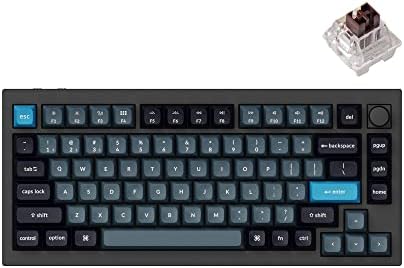
Keychron Q1 Pro is the enthusiast's upgrade path. It's a gasket-mounted 75% with a knob, hot-swap sockets, and a metal case that gives it real heft. It's ~$199, so it's not a budget pick, but it's the board that makes the AULA feel like a starter. The stock switches are decent, but you'll want to swap them for something creamier.
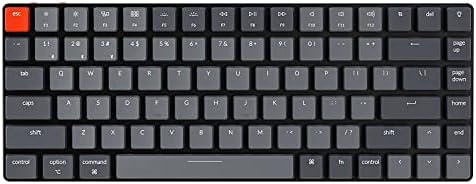
Keychron K3 Pro is the low-profile option. If you're coming from a laptop keyboard and want something thin, this is the one. It's ~$99, hot-swappable, and the low-profile switches are surprisingly smooth. The stabilizers are a bit rattly out of the box, but that's fixable.
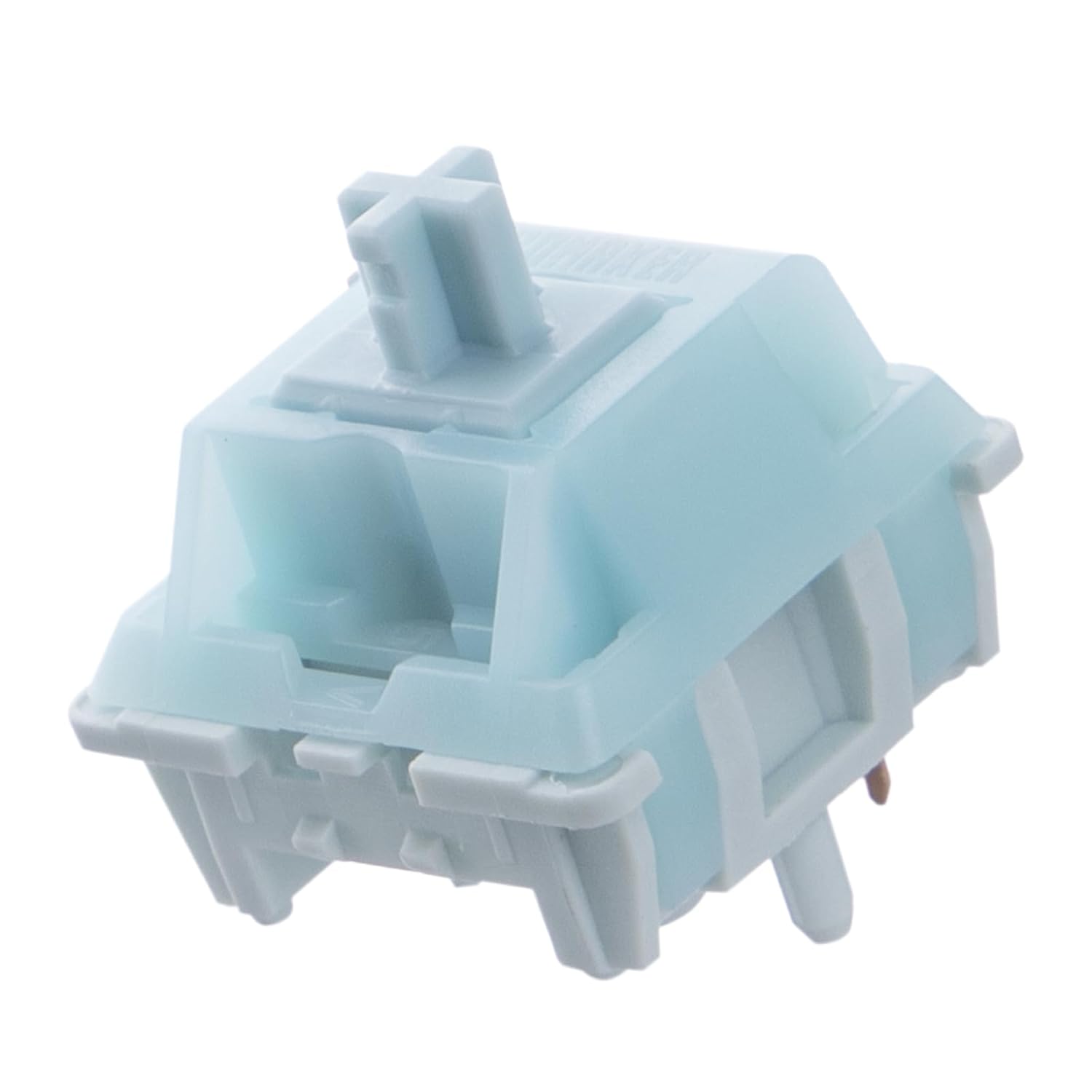
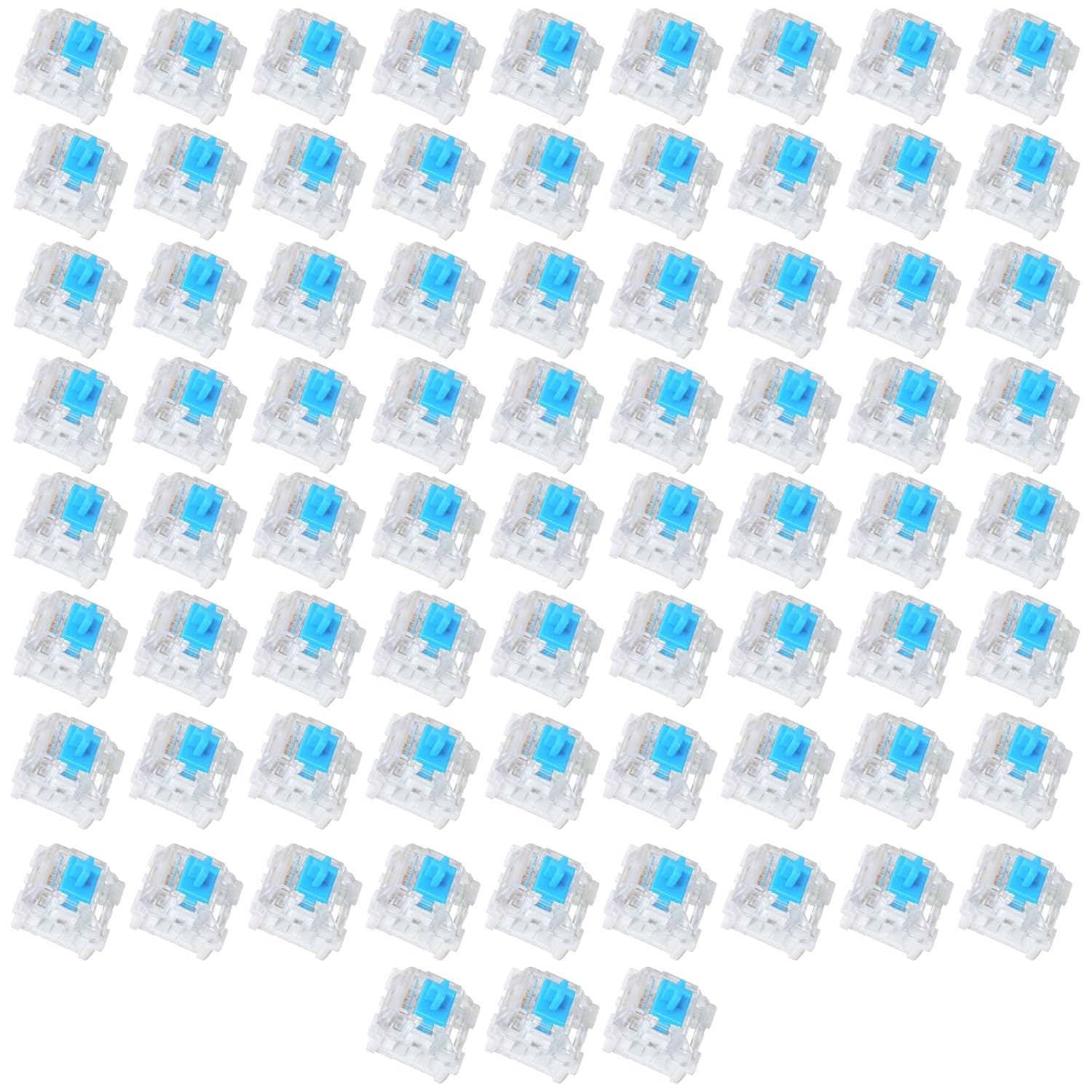
Linear switches are what you want if you're replacing sticky switches and want a smooth, quiet feel. They're the standard for typing and gaming, and they're what the AULA ships with.
Tactile switches are the middle ground. They have a bump at the actuation point, which gives you feedback without the click. If you find linear switches too easy to bottom out, these are the fix.
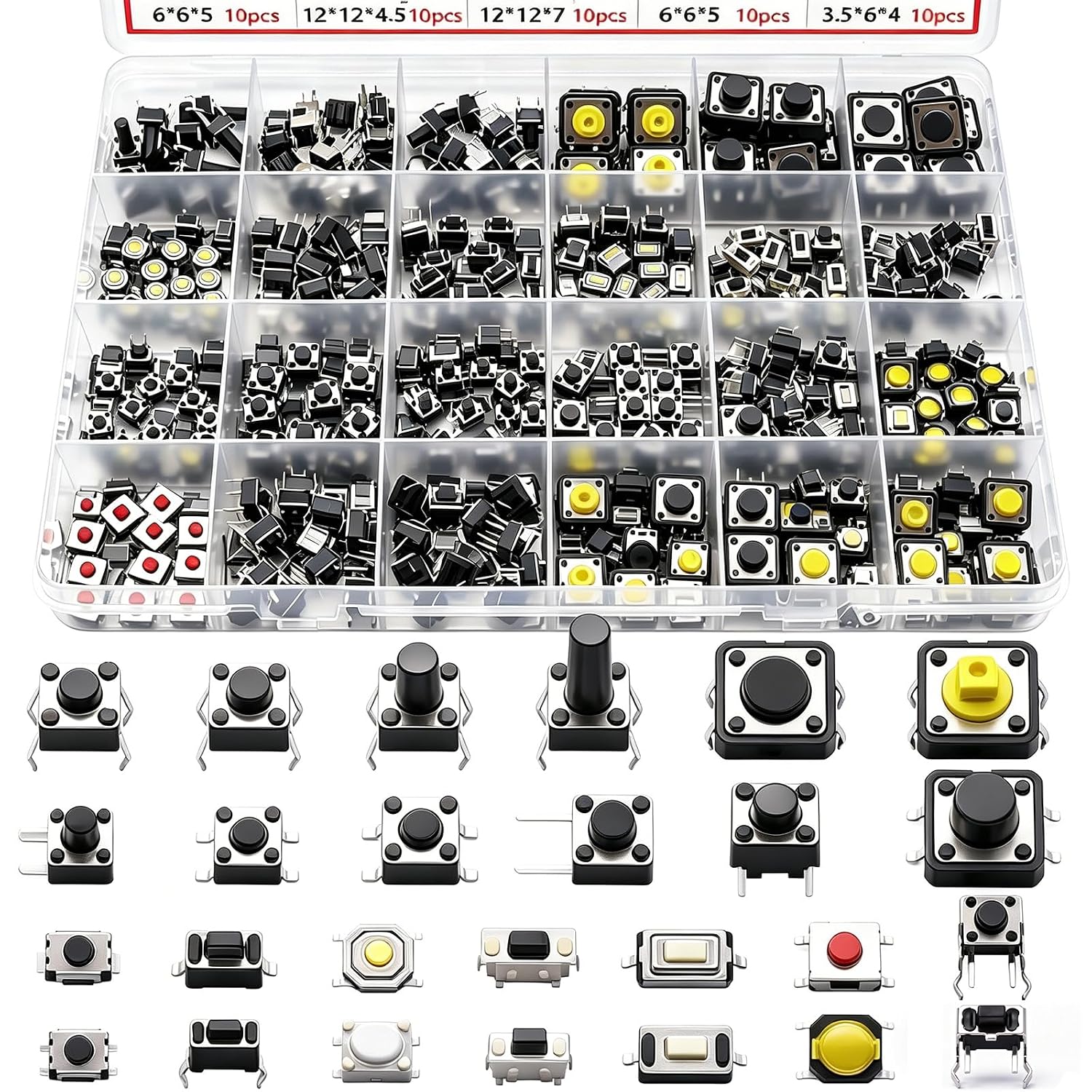
Clicky switches are the loud ones. They sound like a typewriter and will annoy everyone within 10 feet. If you're replacing sticky switches, these are a statement, not a solution.
The Bottom Line
Sticky keys are almost always a crumb, a spill, or a dying switch. The crumb fix is a keycap puller and compressed air. The spill fix is isopropyl alcohol and patience. The dying switch fix is hot-swap sockets and a ~$15 set of replacements.
If your board has more than four sticky keys, the switches are failing, and the repair cost is close enough to a new AULA that you should just buy the AULA.
It's built different, it runs on wizard energy, and it won't stick. If you aren't sure, just get one.