The AULA F75 Pro advertises itself as a keyboard that "does not respond like a budget keyboard." Fair enough. But nobody tells you that the RGB customization software shows up in French on an English-language PC, and that "Clavier Mecanique" greeting is just the beginning of a weird, wonderful, and occasionally maddening journey.
I've been typing eight hours a day for four years now, and I've customized RGB on every board I own: the RK61 that started it all, the AULA F75 Pro that replaced it, the Logitech MX Mechanical on my side desk, and a Keychron or two that live in the rotation. Waffles, my 65-pound labradoodle, has watched me do all of it from his pillow next to my desk. He has no opinion on RGB. He's a dog.
Here's the truth about customizing keyboard RGB in 2026: the hardware is mostly great, the software is mostly terrible, and there's exactly one setting that matters more than all the others. Let me walk you through what actually works.
The 30-Second Version
If you want per-key RGB control, custom animations, and a battery that lasts more than a week, here's the short list:
| Board | Price | Software | Battery Life (RGB off) | Per-Key RGB |
|---|---|---|---|---|
AULA F75 Pro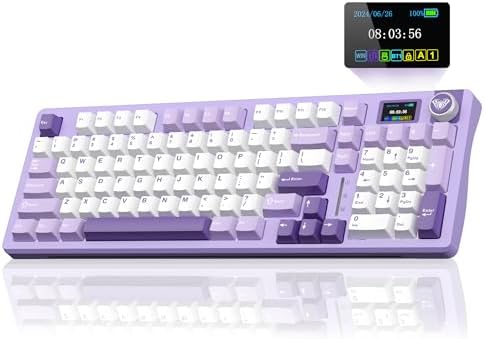 Visit on Amazon → AULA F75 Pro Visit on Amazon → AULA F75 Pro |
Check price | 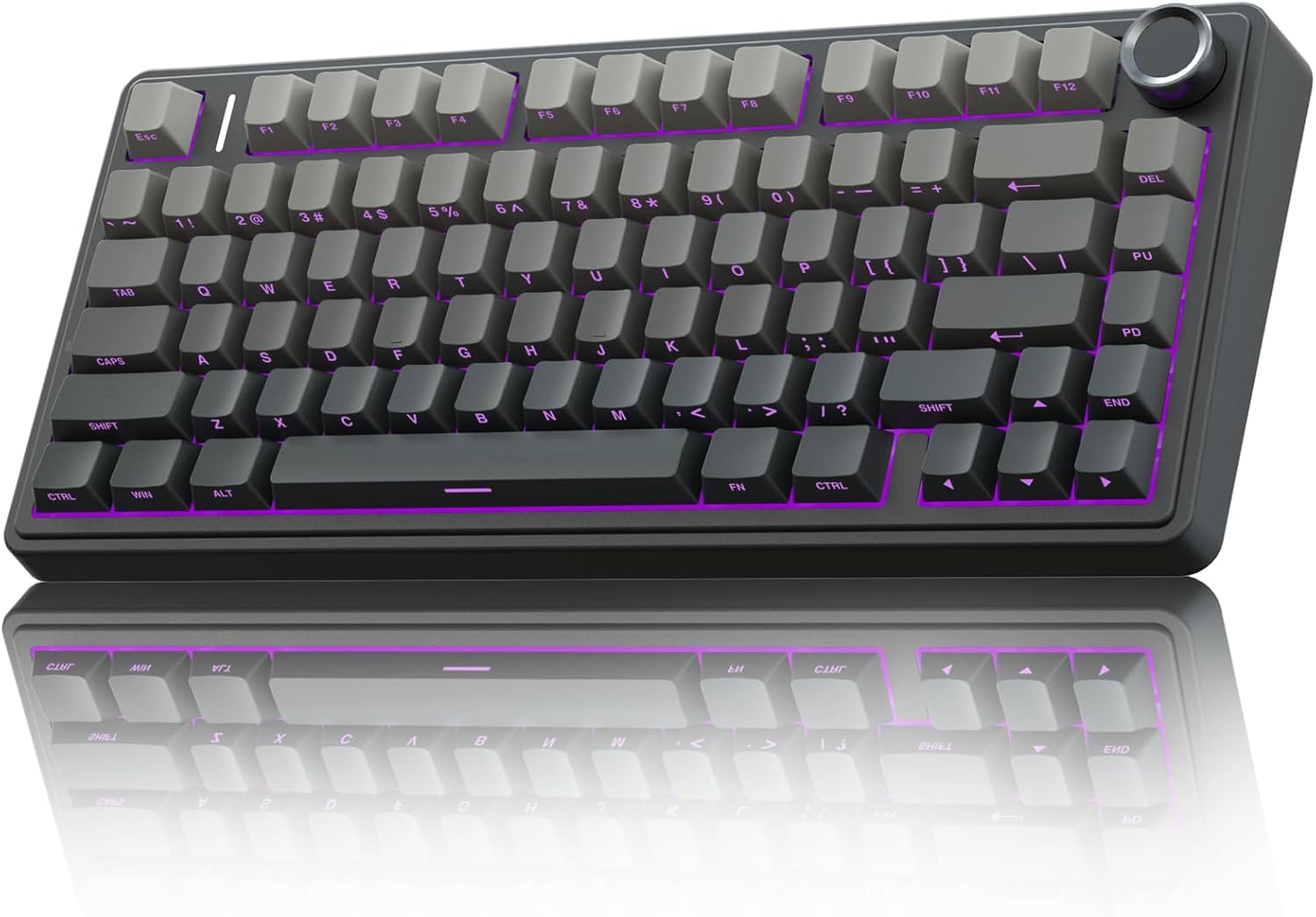 Visit on Amazon → Visit on Amazon →AULA (French, buggy) |
3+ weeks | Yes |
 Visit on Amazon → Visit on Amazon →Logitech MX Mechanical |
Check price | Logitech Options+ | 15 days | No (zones only) |
| RK61 | Check price |  Visit on Amazon → Visit on Amazon →RK (minimal) |
~10 hours | Yes |
Keychron Q1 Pro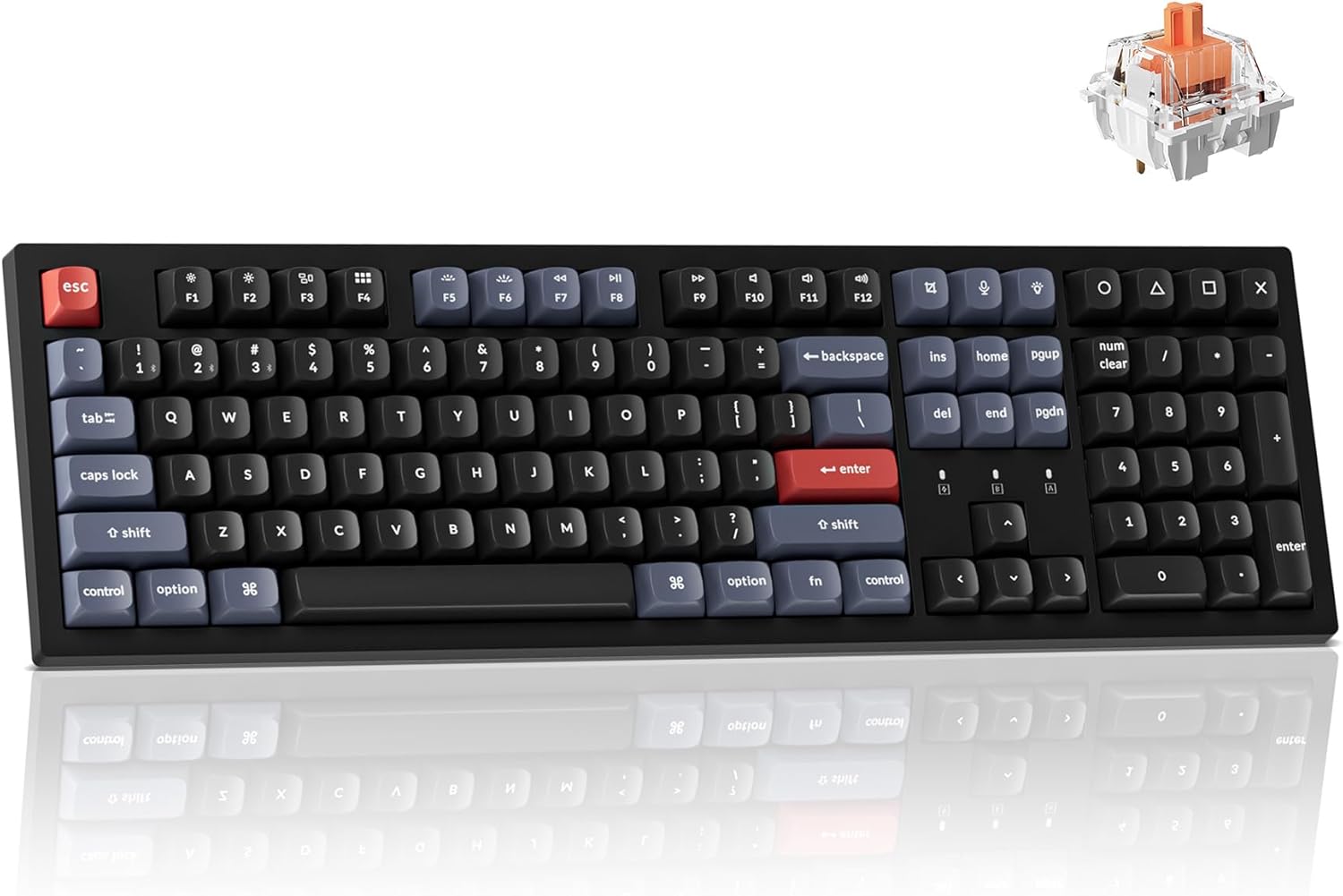 Visit on Amazon → Keychron Q1 Pro Visit on Amazon → Keychron Q1 Pro |
Check price |  Visit on Amazon → Visit on Amazon →VIA (open source) |
N/A (wired) | Yes, fully |
| That table tells you most of what you need. The prose tells you the rest. |
The AULA F75 Pro: Wizard Energy and French Software
Let me start with the board I use daily. The AULA F75 Pro is a "life upgrade." I'm not being dramatic. The gasket mount gives it a soft flex you normally pay ~$150 for, the Leobog Reaper switches are pre-lubed with "no scratchy noises" out of the box, and the battery runs on what one owner called "wizard energy." I kept checking the percentage because it refuses to go down. It became a ritual.
The RGB customization, though? That's where the wizard energy fizzles.
The AULA software downloads as a zip file that shows up in French. Not a language setting, not a toggle. The entire interface, in French, on my English-language Windows PC. I clicked through it anyway because I'm stubborn, and I found the per-key lighting section.
You can assign individual colors to individual keys, set up reactive effects that light up when you press a key, and even upload custom animations.
When it works, it's genuinely impressive for a ~$60 board.
The problem: the software sometimes forgets your settings when you unplug the board. And the "self-define" mode for individual RGB keys is buried under a tab that took me twenty minutes to find because I was translating French menu labels in my head.
Multiple owners report the same issues. One reviewer on Amazon wrote that the software "shows 'Clavier Mecanique' in French, and I can't customize individual RGB keys in self-define mode."
Here's what actually works: the onboard controls. You don't need the software for the basics. FN + the number row cycles through preset lighting modes. FN + the arrows adjust brightness and speed. There are something like 20 presets built in, from a static color to a rainbow wave to a reactive ripple that follows your keystrokes.
I set mine to a static teal with FN + a few key presses and never opened the software again.
The catch: the keycap legends are south-facing, on the front of the keycaps, so "letters on key cannot be seen from top." If you're a touch typist, this doesn't matter. If you look down at your keys, the RGB is lighting up the back of the legends, which you can't see. It's the #1 complaint in every review, and it's the #1 reason people return the board.
The battery: with RGB off, expect three weeks of daily use. With RGB on, less than a week. That's physics, not a flaw, but it's not disclosed clearly enough on the product page.
Choose the AULA if you want the best typing feel under ~$100 and you're willing to fight the software once to set your colors. Choose something else if you need to see your key legends from above.
The Logitech MX Mechanical: Premium Hardware, Zone-Only Lighting
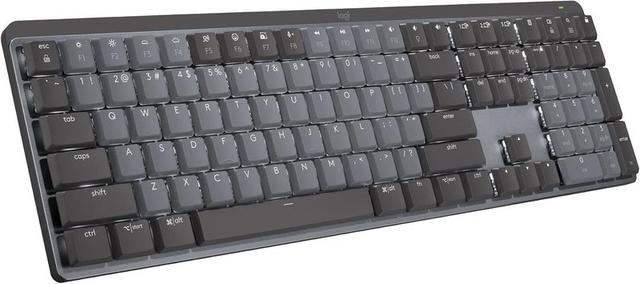
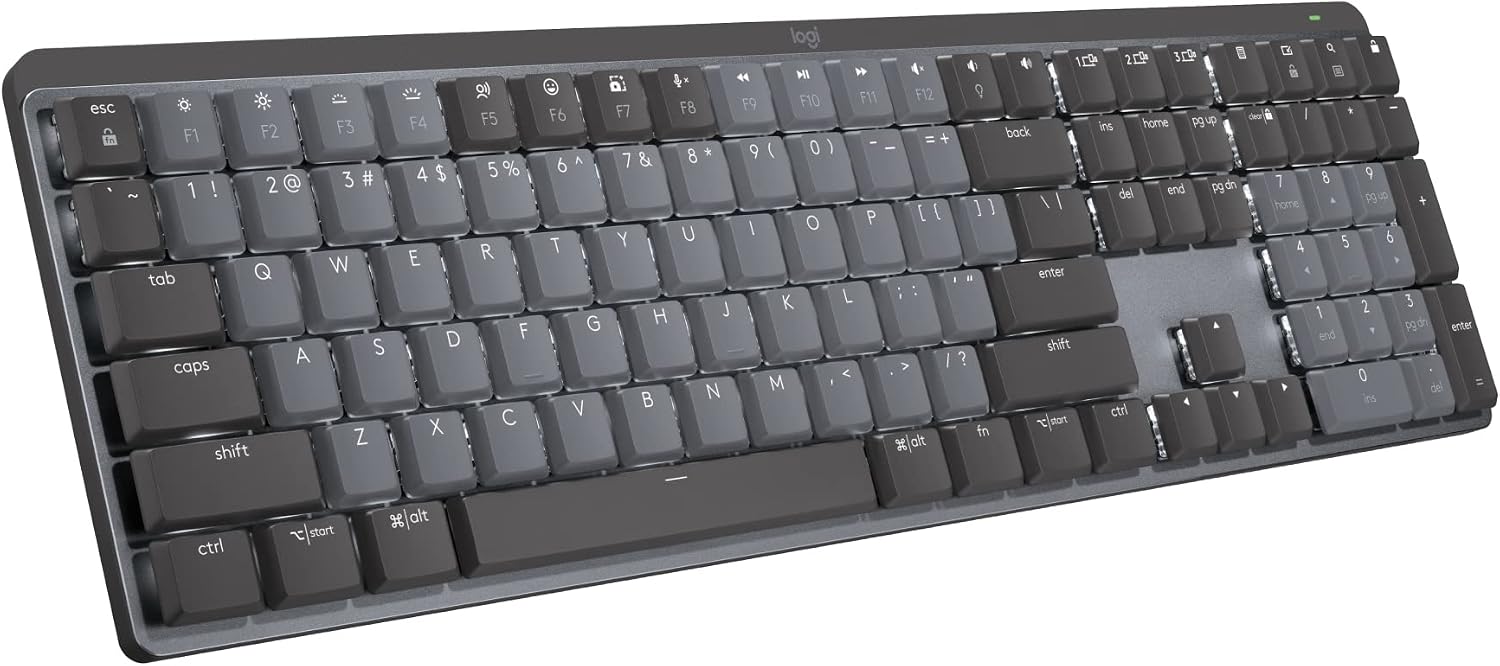
The Logitech MX Mechanical is the keyboard I reach for when I want to feel like a professional. It KICKS TAIL. The build is dense and heavy, the wireless is rock-solid, and the Logitech Options+ software is the most polished of any board I've tested. It also costs ~$160, which is why I expect better.
The RGB situation is the disappointment. This board doesn't do per-key lighting. It does zone lighting: seven zones, each of which you can set to a color. That's it. You get a gradient effect at best, not the reactive per-key animations the AULA does for a third of the price.
For ~$160, I expect to be able to light up my WASD keys a different color than the rest of the board.
The Logitech physically cannot do that.
What it does do well: the lighting is bright and even, the color accuracy is excellent, and the software is stable. No French menus, no forgotten settings, no unplugging to reset your RGB. It just works, which is more than I can say for the budget options.
The bigger issues are the layout sins. The function row is crammed against the number row with no gap, so I spent my first week accidentally locking my Windows session when I meant to hit the minus key.
There's no Print Screen button on a full-size keyboard in 2026, which is absurd for anyone who takes screenshots at work.
And the switches register high on the press, so you get double keystrokes until you learn to be gentler.
One reviewer captured the sound perfectly: "I personally like creamy and thocky keyboards so this sounded a bit too clacky for my liking."
The RGB customization process: Logitech Options+ gives you a color wheel for each zone, some lighting effects (breathing, wave, solid), and a brightness slider. It takes about thirty seconds to set up. You'll never touch it again because there's nothing else to do.
Choose the Logitech if you want premium build quality, you're "willing to pay a little more" for a "NICE one," and you only need basic zone lighting. Choose something else if per-key RGB is non-negotiable, because this board will disappoint you.
The RK61: The Baseline You Learn On
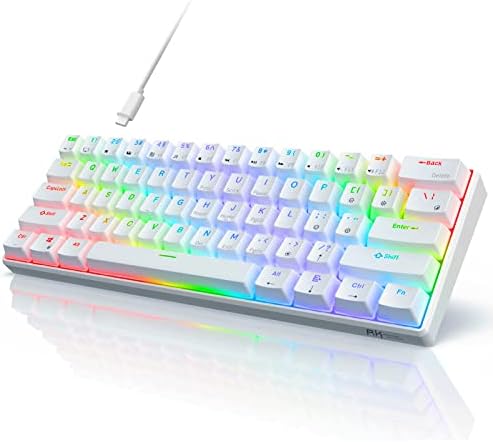
Every keyboard reviewer has a "before" board. For me, and for thousands of others, it's the RK61. I bought mine for ~$35 on a whim, and it's the reason I'm typing this on a ~$60 board that feels like it costs twice as much.
The RK61's RGB customization is the simplest of any board I've used. There's no software. There's just a FN key and a lot of patience. You hold FN and press specific keys to cycle through lighting modes, adjust brightness, and change colors. It's clunky, it's limited, and the manual is a tiny pamphlet with diagrams that look like hieroglyphics.
But here's the thing: it taught me what I actually want from RGB. After a month of cycling through the RK's presets, I realized I only ever used two: a static color and a reactive effect. That's it. I never needed per-key customization. I never needed animations. I needed a board that remembered my color when I unplugged it.
The RK doesn't remember. It resets to rainbow whenever you unplug it. That's the single most annoying thing about the board, and it's the reason I upgraded.
Keychron Q1 Pro: The Open-Source Gold Standard
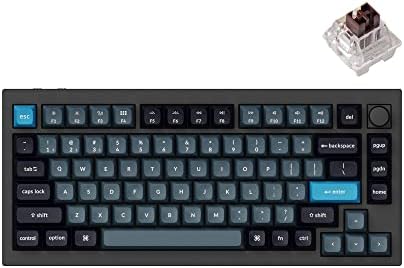
I own the Keychron Q1 Pro for the days when I want to feel like a real enthusiast. It's a ~$199 gasket-mounted board with VIA support, which means you customize it through a web-based app that runs in your browser. No downloads, no French menus, no forgotten settings. You pick your keymap, assign your RGB per key, and it saves directly to the board's memory.
The RGB customization is the best I've used. Per-key colors, multiple layers of lighting effects, and the ability to assign any key to any function while you're in there. The board also supports QMK firmware, so if you're the type of person who wants to write your own lighting animations in C, you can do that too. I'm not that person, but I respect that the option exists.
The catch: it's wired-only. The battery is a 4000 mAh cell, but it's a display piece, not a daily driver. I keep it on my desk for the sound (it's the thockiest board I own) and the satisfaction of knowing I could customize anything if I wanted to.
The Settings That Actually Matter
After two years of testing RGB on these boards, here's what I've learned. The lighting mode you pick matters less than these three things:
Brightness. Most boards default to 100% brightness, which drains the battery and washes out the colors. I run my AULA at 40% brightness for daily use. It looks better, and the battery lasts noticeably longer.
Static vs. Reactive. A static color is easier on the eyes for eight hours of typing. Reactive effects are fun for the first day, then they get distracting. I keep one reactive mode saved for when I'm feeling fancy, but I default to static.
Battery management. RGB off gets you three weeks on the AULA. RGB on gets you less than a week. If you want the wizard energy, turn the lights off. If you want the lights, charge the board every Sunday. You can't have both.
My Honest Bottom Line
Customizing keyboard RGB is 80% learning your board's onboard controls and 20% wrestling with software. The AULA F75 Pro gives you the most control for the least money, but you'll fight the French software once. The Logitech MX Mechanical is the most polished but physically can't do per-key lighting. The RK61 is the baseline that makes you appreciate everything else.
I don't track prices day to day, so I won't pretend to know next week's deals. What I know is this: if you want the best RGB customization under ~$100, get the AULA, set it to static teal at 40% brightness, and never open the software again.
If you want premium build and you're fine with zone lighting, get the Logitech. If you want per-key control without the software fight, save up for the Keychron.
And if you're on an RK61 wondering if the upgrade is worth it? It's not even close. The AULA makes the RK feel like a toy, RGB included.